Troubleshooting
The Execution of a Function Failed#
After triggering a function, the td exe list-trx reports the transaction as failed.
For example:

If a transaction is in Stalled status, all functions that did not complete successfully yet are either in Failed status or on Hold. All functions from all transactions that depend on the failed transaction will also be on Scheduled status if they didn’t execute yet.
Find the Workers of the Failed Transaction that Already Executed#
To know the exact reason for fialure, you will need to access the constituent workers of a transaction. To find the workers of the stalled transaction, use the td exe list-worker command with one of the following 3 options:
--trx <TRX_ID>to list workers of a specific transaction.--plan <PLAN_ID>to list workers of a specific execution plan.--fn <FN_ID>to list workers of a specific function.

Fetch the logs of a Worker#
To fetch the logs of a worker, use the td exe logs --worker <WORKER_ID> command.
td exe logs --worker 06ACHMC505VC10HMF7NI1D9RUG
Logs from worker '06ACHMC505VC10HMF7NI1D9RUG':
********************
/Users/foo/.tabsdata/instances/tabsdata/workspace/work/proc/ephemeral/function/work/cast/06ACHMC505VC10HMF7NI1D9RUG_1/work/log/err.log
-----------------------------------------------
Traceback (most recent call last):
  File "<frozen runpy>", line 198, in _run_module_as_main
  File "<frozen runpy>", line 88, in _run_code
  File "/Users/foo/.tabsdata/environments/726fbc09de/lib/python3.12/site-packages/tabsserver/function_execution/execute_function_from_bundle_path.py", line 106, in <module>
    raise e
  File "/Users/foo/.tabsdata/environments/726fbc09de/lib/python3.12/site-packages/tabsserver/function_execution/execute_function_from_bundle_path.py", line 96, in <module>
    execute_bundled_function(
  File "/Users/foo/.tabsdata/environments/726fbc09de/lib/python3.12/site-packages/tabsserver/function_execution/execute_function_from_bundle_path.py", line 35, in execute_bundled_function
    results = execution_utils.execute_function_from_config(
              ^^^^^^^^^^^^^^^^^^^^^^^^^^^^^^^^^^^^^^^^^^^^^
  File "/Users/foo/.tabsdata/environments/726fbc09de/lib/python3.12/site-packages/tabsserver/function_execution/execution_utils.py", line 87, in execute_function_from_config
    return execute_function_with_config(config, met, working_dir, execution_context)
           ^^^^^^^^^^^^^^^^^^^^^^^^^^^^^^^^^^^^^^^^^^^^^^^^^^^^^^^^^^^^^^^^^^^^^^^^^
  File "/Users/foo/.tabsdata/environments/726fbc09de/lib/python3.12/site-packages/tabsserver/function_execution/execution_utils.py", line 131, in execute_function_with_config
    result = met(*parameters)
             ^^^^^^^^^^^^^^^^
  File "/Users/foo/src/tabsdata/github/tabsdata-ex/publisher.py", line 10, in pub
    assert False
           ^^^^^
AssertionError
===============================================
/Users/foo/.tabsdata/instances/tabsdata/workspace/work/proc/ephemeral/function/work/cast/06ACHMC505VC10HMF7NI1D9RUG_1/work/log/fn.log
-----------------------------------------------
...
Depending on the type of error, you may need to retry the transaction or cancel it.
If there is an error in your function code, you need cancel the transaction, fix the issue in the code, update the function and re-trigger the function that started the cancelled transaction.
Recover the Transaction#
To recover the transaction use the td exe recover --trx <TRX_ID> command. It will retry all workers that failed and reschedule all workers that were on hold. The recover also applies to all the dependent transactions.
For example:
td exe recover --trx 06ACE0ME7TV95DKETOAMVB88DK
Recovering transaction with ID '06ACHMC4H1QJ3E7VS99VSRES4K'
----------
Execution plan recovered successfully
Cancel the Transaction#
To cancel the transaction use the td exe cancel --trx <TRX_ID> command. It will cancel all workers of the transaction, including the ones that finished successfully. The cancel also applies to all the dependent transactions.
For example:
td exe cancel --trx 06ACE0ME7TV95DKETOAMVB88DK
Canceling transaction with ID '06ACHMC4H1QJ3E7VS99VSRES4K'
----------
Execution plan canceled successfully
Server Related Issues#
Check the Server Status#
Use the tdserver status command to check the status of the Tabsdata server.
Sample output when running:

Sample output when not running:
$ tdserver status
2025-02-02T21:34:16.330213Z  WARN tabsdatalib::bin::tdserver: ✅ ✅ ✅ Activated tabsdata enterprise in production mode
2025-02-02T21:34:16.348513Z  WARN tabsdatalib::bin::tdserver: TabsData instance '/Users/foo/.tabsdata/instances/tabsdata/workspace' not running: 'NotRunning { pid: 90788 }'
Check the Server Logs#
Use the tdserver log command to check the logs of the Tabsdata server. It will print (continuously) the logs of the server. Press Ctrl+C to stop.
For example:
$ tdserver log
...
Source: /Users/foo/.tabsdata/instances/tabsdata/workspace/work/proc/regular/apisrv/work/log/td.log - Line: 2025-02-02T22:12:10.370237Z DEBUG tower::buffer::worker: service.ready=true processing request
Source: /Users/foo/.tabsdata/instances/tabsdata/workspace/work/proc/regular/apisrv/work/log/td.log - Line: 2025-02-02T22:12:10.370237Z DEBUG tower::buffer::worker: service.ready=true processing request
Source: /Users/foo/.tabsdata/instances/tabsdata/workspace/work/log/td.log - Line: 2025-02-02T22:12:10.746806Z DEBUG td_common::monitor:
Source: /Users/foo/.tabsdata/instances/tabsdata/workspace/work/log/td.log - Line: - Process PID...: 11056
Source: /Users/foo/.tabsdata/instances/tabsdata/workspace/work/log/td.log - Line: - Process Physical Memory: 30 mb
Source: /Users/foo/.tabsdata/instances/tabsdata/workspace/work/log/td.log - Line: - Process Virtual Memory.: 402,494 mb
Source: /Users/foo/.tabsdata/instances/tabsdata/workspace/work/log/td.log - Line: - System Total Memory....: 131,072 mb
Source: /Users/foo/.tabsdata/instances/tabsdata/workspace/work/log/td.log - Line: - System Used Memory.....: 56,216 mb
Source: /Users/foo/.tabsdata/instances/tabsdata/workspace/work/log/td.log - Line: - System Free Memory.....: 36,798 mb
Source: /Users/foo/.tabsdata/instances/tabsdata/workspace/work/proc/regular/apisrv/work/log/td.log - Line: 2025-02-02T22:12:10.872019Z DEBUG tower::buffer::worker: service.ready=true processing request
S
...
Check the Server Status using the Client Command-Line Tool#
Use the td status command to check the status of the Tabsdata server. You must be logged in to the server to use the td command-line tool.
Sample output when logged in:
$ td status
Obtaining server status
----------
Status: 'OK', latency_as_nanos: 24333
Sample output when not logged in:
$ td status
No credentials found. Please login first.
Sample output when Tabsdata server is not running:

Hard Reset#
Remove Tabsdata instance#
All the information related to Tabsdata server is stored in instances. By default instances are created in the root folder. You can run the following command to delete the instance and start the process from scratch with tdserver start.
$ tdserver delete
Clean the Tabsdat related libraries from pip and uv cache:
$ tdserver clean
Delete stray Servers#
There may be also be a stray Tabsdata server (supervisor and/or apiserver) running in the background.
You can delete the servers using the methods below:
Searching through processes#
$ ps -ef | grep tabsdata
$ kill <PID>
Using btop#
You can use btop (Read more about the tool on btop github).
$ brew install btop
$ btop
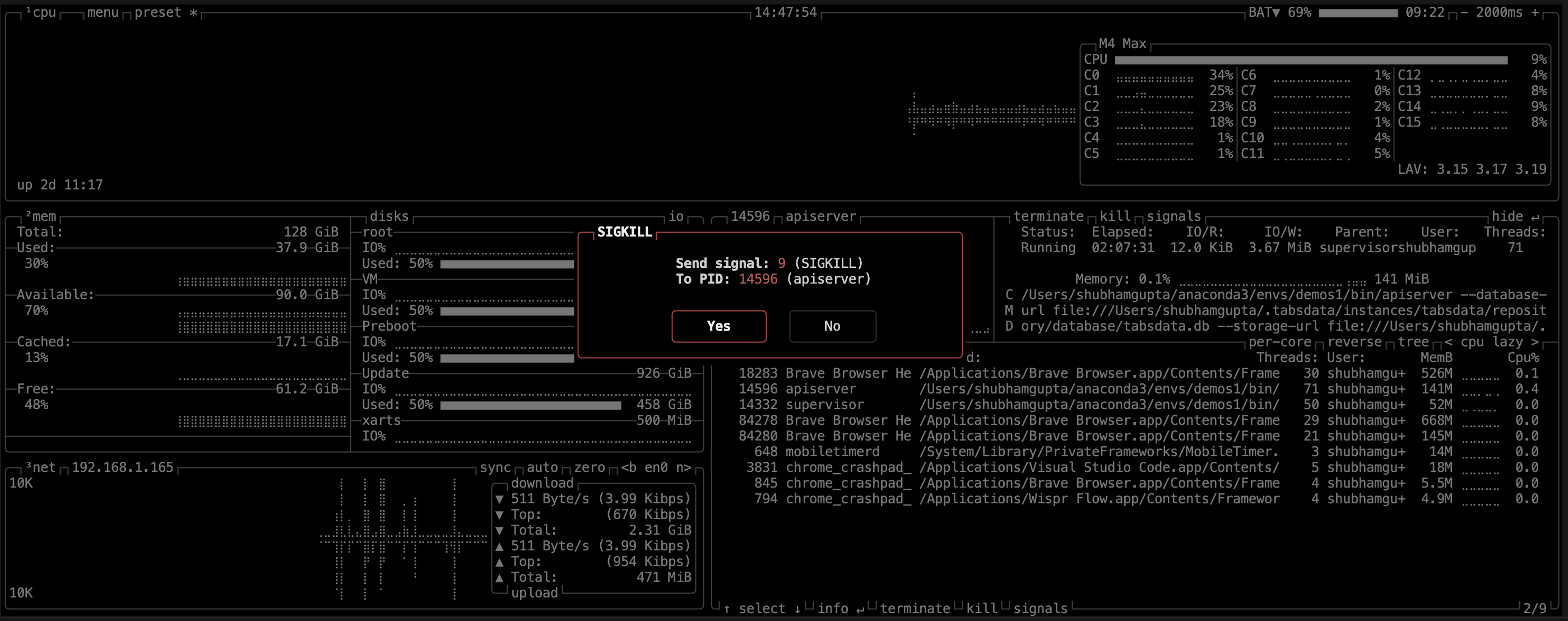
Click on filter and type tabsdata.
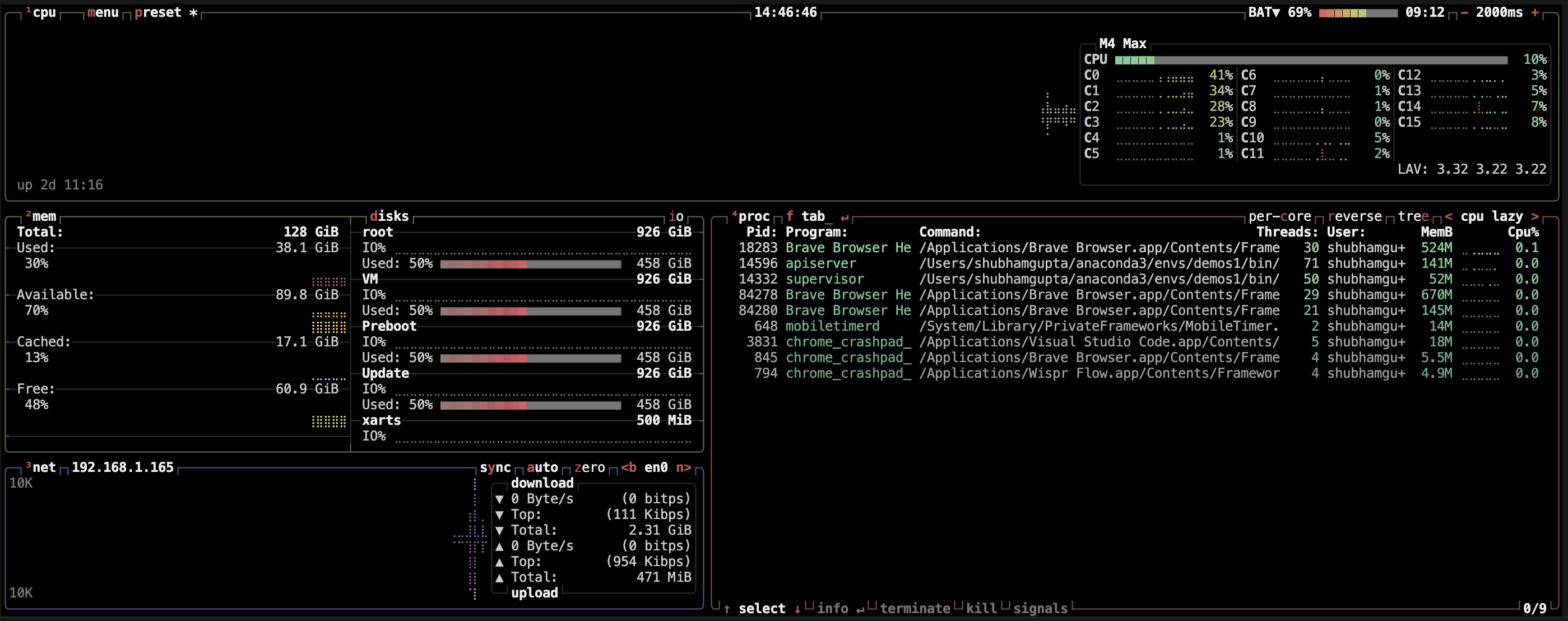
Use your arrow keys to navigate to the apiserv.
Press k to kill the server.
Error Resolutions#
Authentication Failed#

If authentication is failing, try logging back in.
td login --server localhost --user <USERNAME> --role <ROLE> --password <PASSWORD>
Trigger in loop#
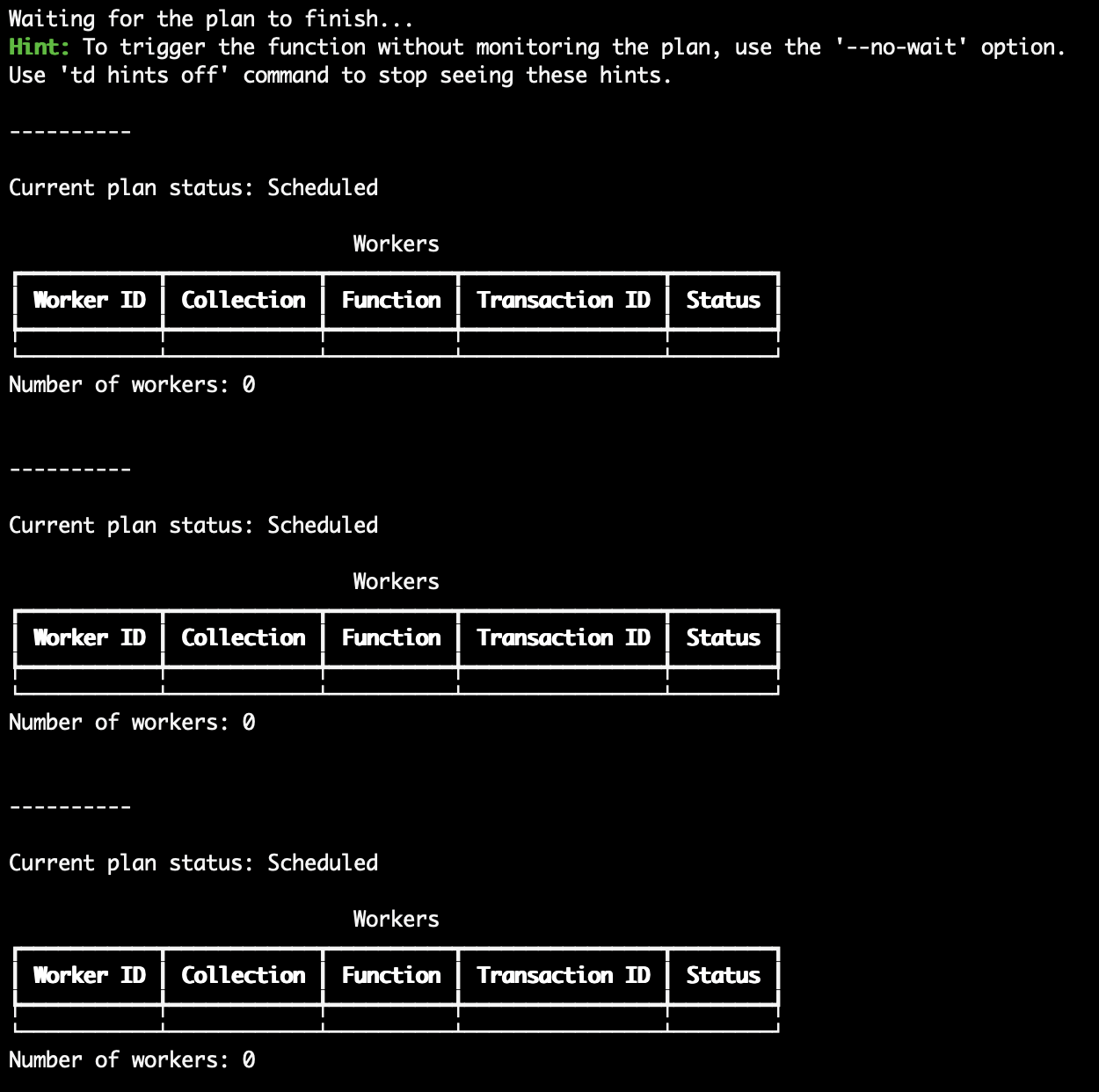
If post trigger, the status is stuck in a loop without any progress, then you can interrupt the process with ^ + Z in Linux/MacOS or Ctrl + C for Windows. Note that this only stops the monitoring, not the actual execution of the function. After exiting, you can follow the following steps:
Check the error logs of the worker#
td exe logs --worker <WORKER_ID>
Checking the logs of failed workers can give you an insight into why any particular function is failing to run.
Cancel the transaction#
If you want to rerun a function after it has failed, you need to manually cancel the previous transaction. Without cancelling, your new trigger will not run the function and put it on hold, until all the previous related transactions are either successfully completed or cancelled. This is to maintain consistency and proper state management in complex systems with many depedencies, and multiple transactions running at once.
You can check the transaction id using
td exe list-trxs
or
td exe list-fn-run
Empty Table Schema/Sample#
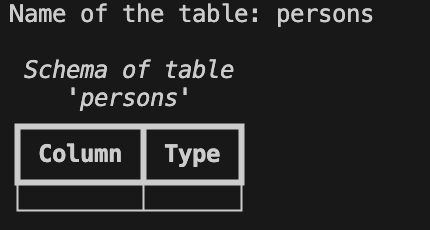
If the table value is empty, check if the path to the input file in the Python code is correct or not. If the path seems correct, you may also want to check the folder from which you are running the function registration CLI command. If you are using os.getcwd() in the python code, it is important to remember that this command retrieves the path of the folder from which the function is registered in the CLI.